Online Timer – Free Countdown Timer for Any Duration
Need a timer right now? Type in the time you want, press Start, and you will hear an alarm when it ends. This online timer works in your browser on a laptop, tablet or phone. You do not have to download anything or create an account.
You can set anything from a few seconds up to 99 hours, 59 minutes and 59 seconds. Whether you are boiling an egg, running a study block or giving yourself a short break from the screen, it takes only a few seconds to set up. There is also a built-in task list, so you can write down what you are working on and tick it off when you are done.
What Is an Online Timer?
An online timer is a countdown clock that lives on a web page. You choose a length of time, it counts down to zero, and it lets you know when the time is up. A kitchen timer does the same job, but you need to have one nearby. A web timer is already open on the device you use every day.
It is also useful because it does more than a basic kitchen timer. You can pick your alarm sound, choose how many times it repeats, play a soft ticking or white noise sound while you work, and switch the whole screen to dark mode so it is easier on your eyes.
Timer vs. Stopwatch – What Is the Difference?
A timer counts down from a time you set. A stopwatch counts up from zero. If you know how long something should take, use a timer. If you want to find out how long something takes, use a stopwatch. When you need the second option, you can switch to our Stopwatch page from the menu at the top.
How to Set and Use the Timer
You can start a countdown in three steps.
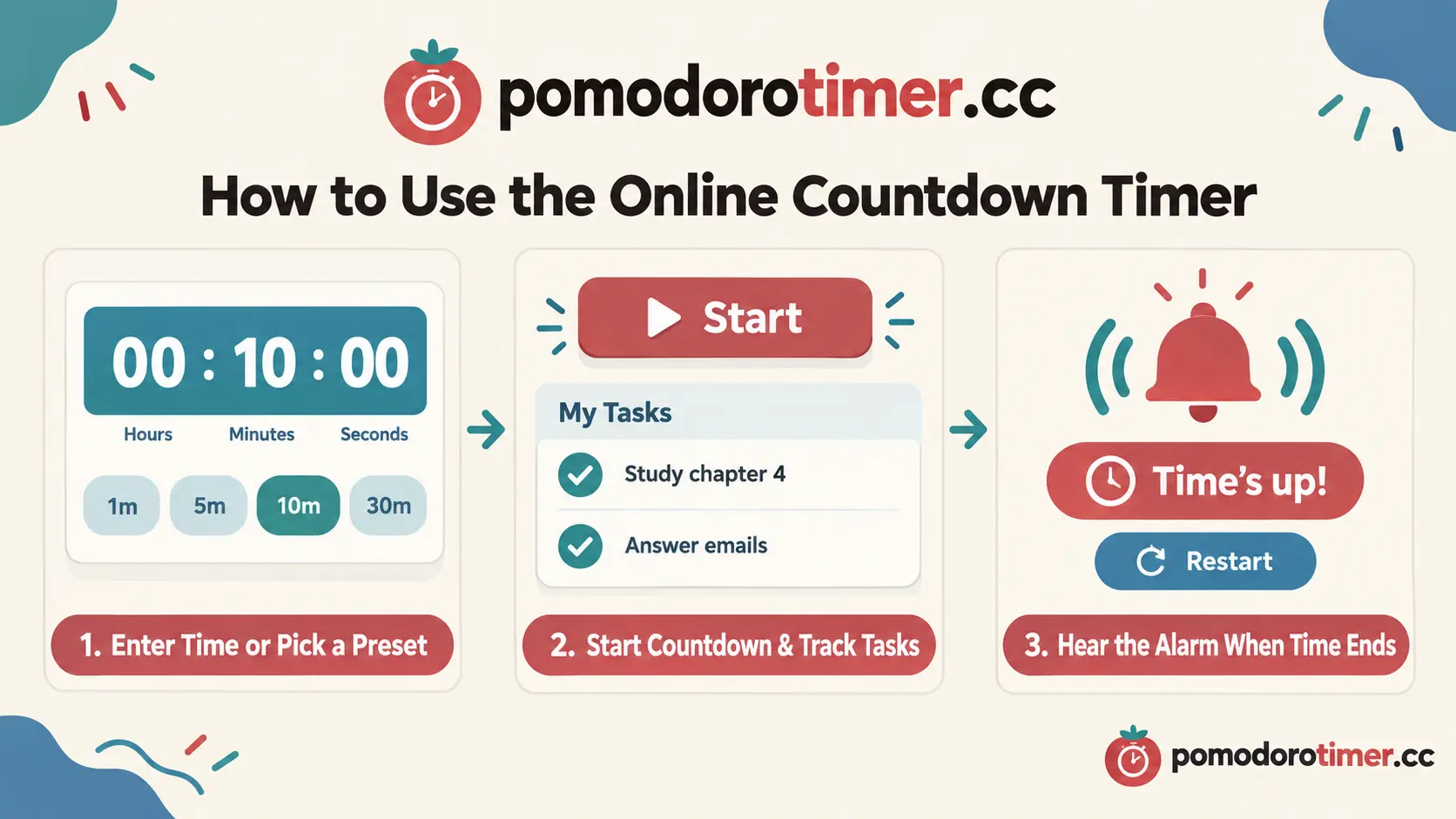
- Click the hours, minutes or seconds box and type the time you want. After you fill one box, the cursor jumps to the next one.
- Press the white Start button, or hit Enter or the Space bar.
- Wait for the alarm. You can press Pause at any time and Resume when you are ready to carry on.
If you change your mind, press Reset and the timer goes back to zero. When the alarm has sounded, the Start button turns into Restart, and one click runs the same time again. This helps if you use the same length over and over.
Quick Presets
For the most common times, there are preset buttons under the clock: 15 minutes, 30 minutes, 1 hour and 2 hours. Click one and the time is filled in for you. Then just press Start.
Keyboard Shortcuts
- Space – start, pause or resume
- R – reset the timer
- T – open the task list and add a task
- D – switch dark mode on or off
Popular Timer Lengths
Most people use a few favourite times again and again. Here are the ones people look for most, and what they are good for. You can set any of them by typing the number into the minutes box.
1 Minute Timer
A 1 minute timer is more useful than it sounds. Use it for a quick stretch, a minute of deep breathing, brushing your teeth for the first half of your routine, a plank hold, or a fast round of a game. It is also a good trick for tasks you keep putting off. Tell yourself you will do it for just one minute, and press Start.
5 Minute Timer
A 5 minute timer works well for short breaks, tidying up a room, a quick walk, steeping tea, or speed-reading an article. Many people also use five minutes as their "get started" time. Set it, begin the task you have been avoiding, and often you will keep going even after the alarm.
10 Minute Timer
A 10 minute timer fits a power nap, a short meditation, a quick workout, a speaking practice or a focused burst of writing. Ten minutes is long enough to make real progress and short enough that it does not feel heavy.
30 Minute Timer
A 30 minute timer is a favourite for study sessions, cooking, laundry reminders and half-hour work blocks. You can use the 30m preset button for it. If you want to work in 25-minute sessions with breaks in between, take a look at our Pomodoro page, which is designed for exactly that.
Use the Timer for Studying and Focus
Setting a time limit makes it easier to start and easier to stay on task. When you know a session has an end, it feels less overwhelming.
A Simple Study Routine
Try this: set the timer for 30 minutes, put your phone out of reach, and study one topic only. When the alarm sounds, take a 5-minute break. Then repeat. Many students find that two or three rounds like this get more done than a long, distracted evening.
You can also turn on a soft ticking sound or white noise from the Settings menu. Some people find it helps them concentrate, and some like how it makes the passing time feel real. If you do not like it, you can leave it off.
Add Tasks to Your Timer Session
Click the Tasks button under the clock, or press T, and a panel slides in from the right. Type what you want to get done and press Add task. When you finish something, tick the circle and it moves to the bottom of the list with a line through it. A small number on the Tasks button shows how many tasks are still open.
This is a nice way to give your timer a purpose. For example, write down "Answer emails", set the timer for 10 minutes, and see if you can finish before the alarm. Your list is saved in your browser, so it is still there the next time you visit.
Choose Your Alarm and Sound Settings
Everyone wakes up to different sounds, so you can pick the one you like. Open Setting at the top of the page and you will find:
- Seven alarm sounds: Bell, Bird, Digital, Kitchen, Wood, Chime and Gong
- Alarm volume: a slider, so it is never louder than you need
- Repeat: play the alarm up to 10 times, handy if you might be in another room
- Ticking and background sound: Ticking Fast, Ticking Slow, White Noise or Brown Noise
- Colour theme: red, teal or blue
Changes are saved automatically on your device.
Dark Mode While the Timer Runs
Press the Dark Mode button and the screen turns dark as soon as the timer starts counting down. This is very comfortable in the evening, or when you are working in a dimly lit room. When the timer stops, the page returns to its normal colours.
Features at a Glance
- Free online timer with no sign-up
- Any time from 1 second up to 99:59:59
- Preset buttons for 15 minutes, 30 minutes, 1 hour and 2 hours
- Start, pause, resume, restart and reset
- Seven alarm sounds with volume and repeat control
- Optional ticking and white noise sounds
- Remaining time shown in the browser tab title
- Built-in task list saved in your browser
- Dark mode while running and three colour themes
- Works on desktop, tablet and mobile
Tips for Using Your Timer Well
- Keep the tab open. The remaining time appears in your browser tab, so you can glance at it while working in another window. Keep the page open so the alarm can play when time is up.
- Check your volume first. If the alarm is important, click an alarm sound in Settings to hear a sample before you start.
- Match the time to the task. Short tasks suit a 1 or 5 minute timer. Deep work suits 30 minutes or more. Choosing a time that feels realistic is the secret to using timers consistently.
- Take real breaks. When the alarm goes off, stand up and move around instead of reaching for your phone.
Frequently Asked Questions
Is this online timer free to use?
Yes. It is completely free, and you do not need to register or give an email address.
What is the longest time I can set?
You can set up to 99 hours, 59 minutes and 59 seconds.
How do I set a 10 minute timer?
Click the minutes box, type 10, and press Start. The same method works for a 5 minute timer, a 1 minute timer or any other time you need.
Is there a 30 minute timer button?
Yes. The 30m preset fills in 30 minutes with a single click.
Will the alarm sound if I switch to another tab?
The time keeps counting down and is visible in the tab title. For the best result, keep the page open in the background and make sure your device volume is turned up.
Can I use the timer on my phone?
Yes. The page adjusts to smaller screens, and the buttons are large enough to tap comfortably.
Does it work without an internet connection?
You need to open the page while online. Once it has loaded, the countdown itself runs on your device.
Set Your Timer Now
Time is easier to manage when you can see it. Pick a time, press Start, and let the online timer do the watching while you get on with your day. Need a 1 minute timer, a 5 minute timer, a 10 minute timer or a 30 minute timer? You can have any of them ready in seconds. Scroll back to the top and give it a try.